
Viewing Commit History
Learn how to read your project's Git history and understand the timeline of saved commits.
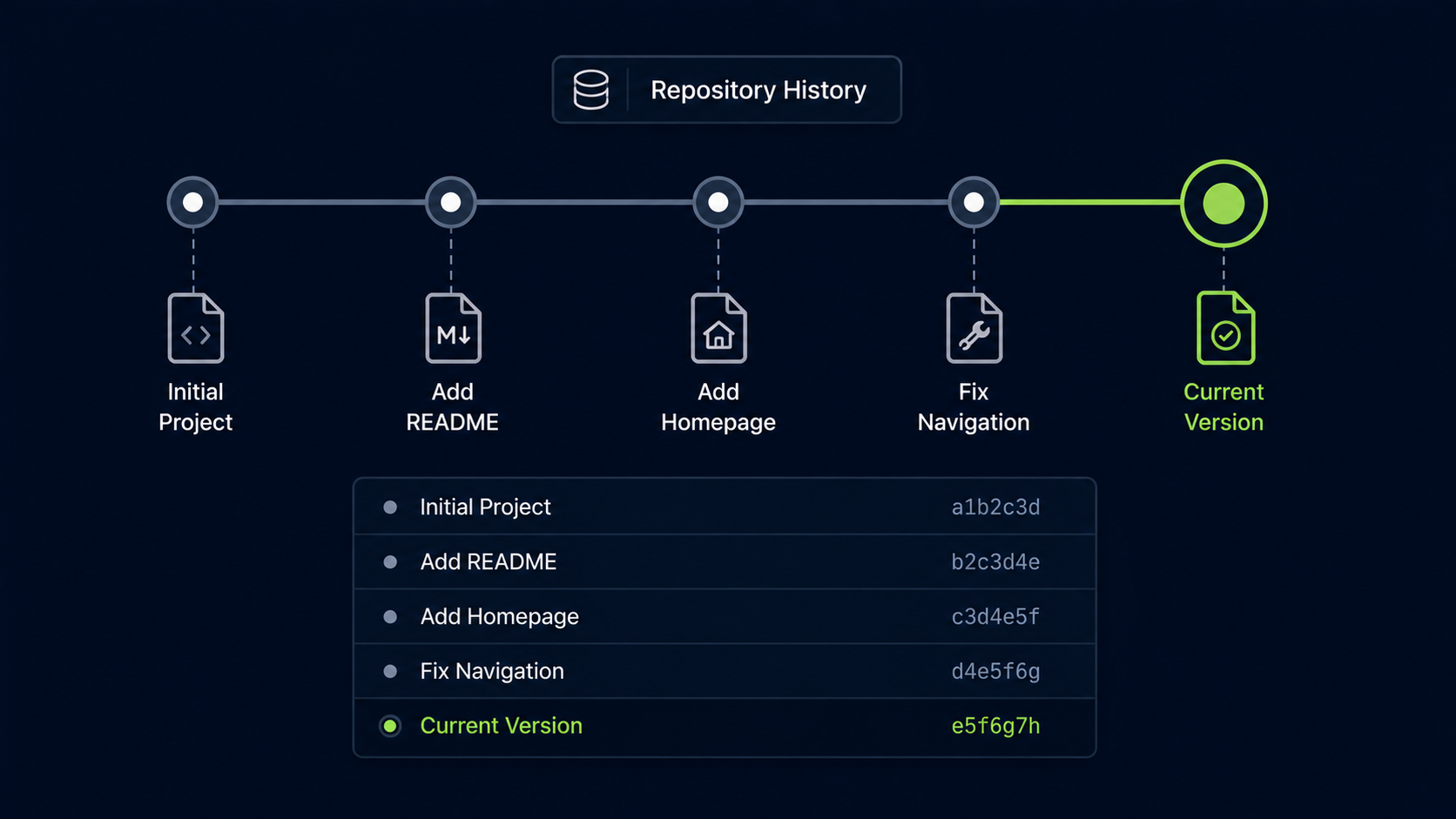
Introduction
Every commit you create becomes part of your project's history. Git stores these commits as a timeline so you can see what changed, when it changed, and who made the change.
In this guide, you will learn how to view commit history using git log, how to read the basic parts of a commit, and how to use a simpler one-line history view when you only need a quick overview.
Why Commit History Matters
Commit history is the memory of your project. It helps you understand how your project evolved over time instead of only seeing the current version of the files.
When something breaks, commit history can help you find when the problem appeared. When you return to a project after a few weeks, commit history helps you remember what you changed.
Real World Example
Imagine building a website and noticing that the contact form stopped working. By looking through the commit history, you may find a commit named Update contact form validation. That gives you a clear place to investigate instead of searching the entire project blindly.
Commit History Mental Model
Think of commit history as a timeline of saved checkpoints. Each commit is one checkpoint. Together, those checkpoints show the story of your project.
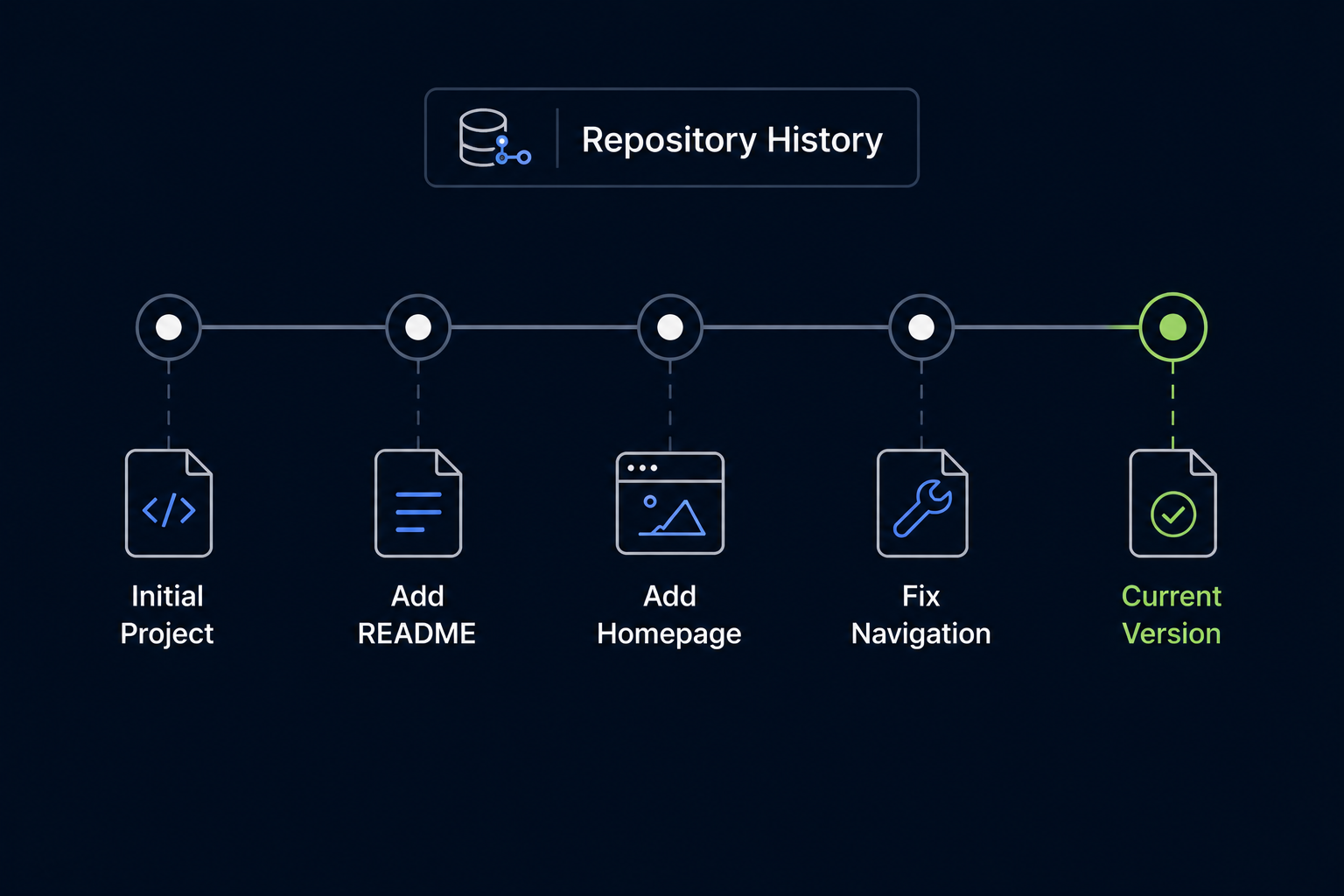
| Commit History Part | Meaning |
|---|---|
| Commit ID | Unique identifier Git gives to each commit |
| Commit message | Human-readable description of what changed |
| Author | Person who created the commit |
| Date | When the commit was created |
The most important beginner skill is learning to connect a commit message with the change it represents.
View Full Commit History
The main command for viewing commit history is git log. It shows detailed information about each commit.
Open Git Bash In Your Repository
Open Git Bash and move into your project repository folder.
Use a repository that already has at least one commit.
cd ~/my-first-project[user@computer MINGW64 ~]
$ cd ~/my-first-project
[user@computer MINGW64 ~/my-first-project (main)]
$
Run Git Log
Use git log to view the full commit history.
Git will show the newest commit first.
git log[user@computer MINGW64 ~/my-first-project (main)]
$ git log
commit 3f4a2b1c8d9e7f6a5b4c3d2e1f0a9b8c7d6e5f4a
Author: Vladimir Shustikov vladimir@clevertechie.com
Date: Thu Jun 4 10:15:22 2026 -0500
Add README file
This output shows one commit. Your commit ID and date will be different because Git creates unique history for each repository.
Understand The Git Log Output
git log output can look intimidating at first, but it is made of simple parts.
| Output Part | Example | Meaning |
|---|---|---|
| commit | 3f4a2b1c... | The full commit ID |
| Author | Vladimir Shustikov | Who created the commit |
| Date | Thu Jun 4 10:15:22 2026 | When the commit was created |
| Message | Add README file | What the commit changed |
The commit ID is long because Git uses it as a unique identifier. Most of the time, you only need the shorter version shown by git log --oneline.
Exit Git Log View
If your repository has many commits, git log may open in a scrollable view. This view lets you move through long history, but beginners often get stuck inside it.
Exit The Log Viewer
Press q on your keyboard to exit the git log viewer.
q means quit. This returns you to the normal Git Bash prompt.
qYou do not type q after the dollar sign prompt. You press the q key while Git is showing the log viewer.
View A Shorter Commit History
A more beginner-friendly way to view history is git log --oneline. This shows each commit on a single line.
Run Git Log Oneline
Use git log --oneline to see a compact version of your commit history.
This is usually easier to read when you only need a quick overview.
git log --oneline[user@computer MINGW64 ~/my-first-project (main)]
$ git log --oneline
3f4a2b1 Add README file
The first part is the short commit ID. The rest of the line is the commit message.
Read Multiple Commits
As your project grows, git log --oneline becomes a timeline of your work.
[user@computer MINGW64 ~/my-first-project (main)]
$ git log --oneline

9c8d7e6 Improve homepage layout
6b5a4c3 Fix navigation link
3f4a2b1 Add README file
Git shows the newest commit at the top. In this example, Improve homepage layout is the newest commit and Add README file is the oldest visible commit.
| Position | Meaning |
|---|---|
| Top line | Newest commit |
| Middle lines | Earlier commits |
| Bottom line | Older commit |
Use Commit History As A Project Timeline
Commit history is not just a technical record. It is a readable timeline of your decisions. Good commit messages make that timeline easier to understand.
| Weak History | Clear History |
|---|---|
| update | Add README file |
| changes | Fix navigation link |
| more stuff | Improve homepage layout |
| final | Add contact form validation |
Clear commit messages help your future self understand the project faster.
Use Oneline Often
git log --oneline is one of the easiest ways to quickly understand where a repository has been.
Common Beginner Mistakes
| Mistake | Why It Confuses Beginners | Better Habit |
|---|---|---|
| Forgetting q exits git log | The terminal feels stuck | Press q to quit the log viewer |
| Ignoring commit messages | History becomes hard to understand | Write clear messages before viewing history |
| Reading from bottom to top | The order feels backward | Remember newest commits appear first |
| Trying to memorize full commit IDs | IDs look overwhelming | Use short IDs from git log --oneline |
Why This Step Matters
Viewing commit history helps you understand your project as a sequence of decisions instead of a folder full of files. This is one of the main reasons Git is so powerful.
Once you can read history, Git becomes more than a save tool. It becomes a way to understand how your work changed over time.
Conclusion
In this guide, you learned how to view commit history with git log, how to read the main parts of a commit, how to exit the log viewer, and how to use git log --oneline for a cleaner timeline.