
Creating Your First Repository
Create your first Git repository and learn how Git begins tracking the history of a project.
Introduction
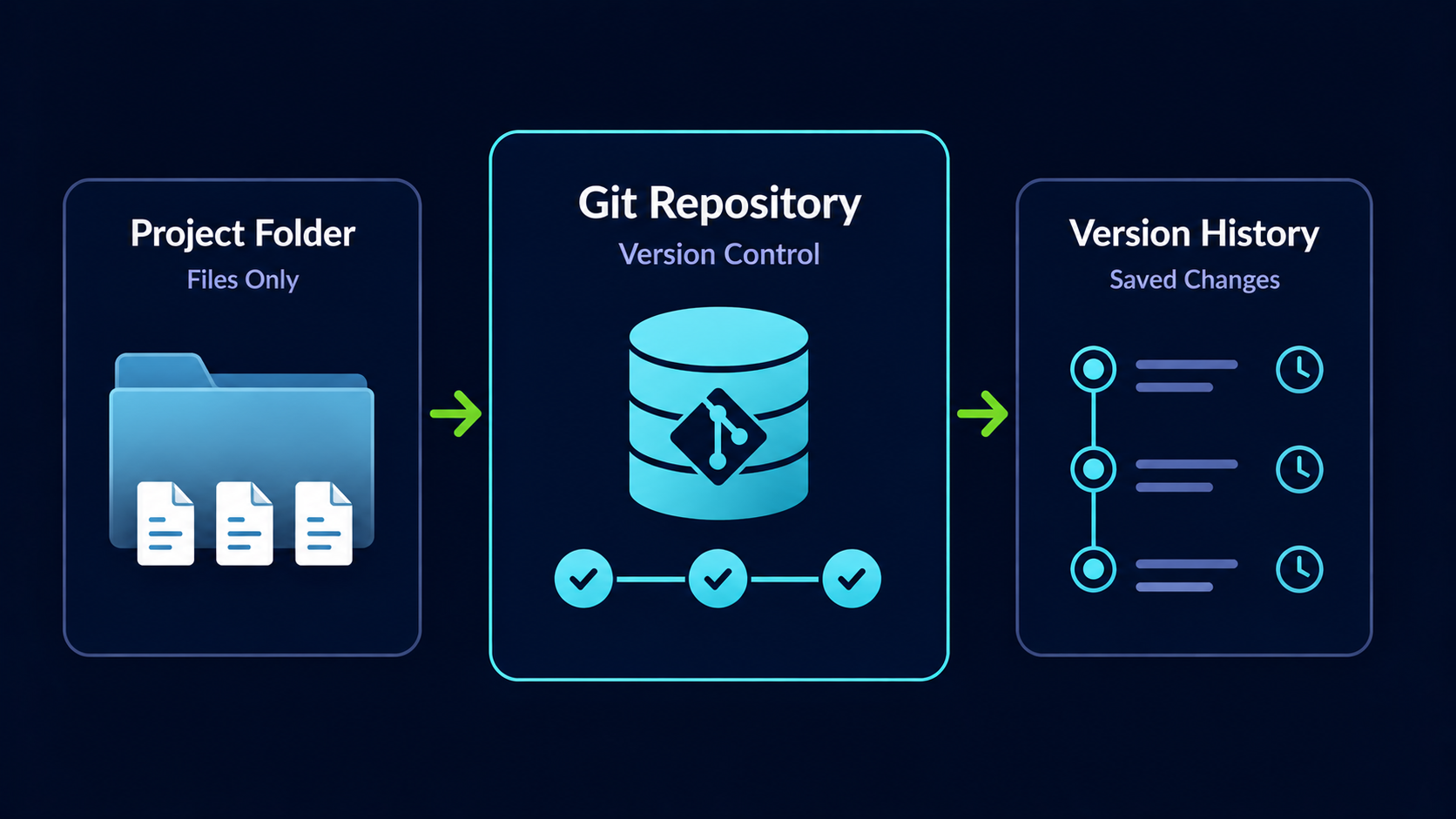
Before Git can track changes, it needs a place to store project history. That place is called a repository. A repository is the foundation of every Git project and acts as the container that stores both your files and their history.
In this guide, you will learn what a repository is, why it matters, and how to create your first repository using Git Bash. By the end, you will have a project that Git is actively tracking.
Why Repositories Matter
Without a repository, Git cannot track changes. Your files are simply normal files stored on your computer. Once a folder becomes a Git repository, Git gains the ability to monitor changes, create history, and help you safely manage your project over time.
Real World Example
Imagine building a website for a client. Before Git, the project might contain folders named Website, Website-New, Website-Final, and Website-Final-2. A Git repository eliminates this confusion by keeping all versions organized inside a single project with a complete history.
Repository Mental Model
A useful way to think about a repository is as a project folder with memory. The folder contains your normal files, but Git adds a hidden system that remembers how those files change over time.
| Component | Purpose |
|---|---|
| Project Folder | Stores your files |
| Git Repository | Stores project history |
| Git | Tracks changes and creates history |
Every Git project starts with a normal folder. Running a single command transforms that folder into a repository that Git can manage.
Understanding What Happens During git init
The command used to create a repository is git init. The word init is short for initialize.
When Git initializes a repository, it creates a hidden folder named .git inside your project. This folder stores all of Git's internal information including commits, branches, configuration, and project history.
Create a Project Folder
First, create a folder that will become your repository.
Open Git Bash
Launch Git Bash from the Windows Start Menu.
Git Bash will be used throughout the Git & GitHub Fundamentals learning path.
[user@computer MINGW64 ~]
$
Create a New Project Folder
Create a folder named my-first-project.
This folder will become your first Git repository.
mkdir my-first-project[user@computer MINGW64 ~]
$ mkdir my-first-project
Enter the Project Folder
Move into the folder you just created.
Git commands affect the current directory you are working in.
cd my-first-project[user@computer MINGW64 ~/my-first-project]
$
Initialize the Repository
Now that you are inside the project folder, you can initialize Git and create your first repository.
Initialize Git
Run the git init command.
This transforms a normal folder into a Git repository.
git init[user@computer MINGW64 ~/my-first-project]
$ git init
Initialized empty Git repository in /c/Users/user/my-first-project/.git/
Git has now created a hidden .git folder inside the project. Your folder is officially a Git repository.
Verify the Repository
The easiest way to verify that Git is working correctly is by checking the repository status.
Check Repository Status
Run the git status command.
This command shows the current state of your repository.
git status[user@computer MINGW64 ~/my-first-project (main)]
$ git status
On branch main
nothing to commit, working tree clean
This output confirms that Git recognizes the repository and is ready to begin tracking changes.
Create Your First File
A repository becomes useful when it contains files. Let's create a simple README file.
Create a README File
Create a new README.md file inside the repository.
README files commonly describe what a project does.
touch README.md[user@computer MINGW64 ~/my-first-project (main)]
$ touch README.md
Check Repository Status Again
Run git status once more.
Notice how Git now detects the new file.
git status[user@computer MINGW64 ~/my-first-project (main)]
$ git status
On branch main
Untracked files:
README.md
nothing added to commit but untracked files present
Understanding Untracked Files
Git has discovered the new file but is not tracking it yet. Files in this state are called untracked files.
This behavior is intentional. Git allows you to decide which files should become part of your project history rather than automatically tracking everything.
Use Git Status Frequently
Git status is one of the most useful commands in Git. Many developers run it dozens of times per day because it provides a quick snapshot of what Git currently sees.
Common Beginner Mistakes
| Mistake | Result | Solution |
|---|---|---|
| Running git init in the wrong folder | Wrong folder becomes a repository | Verify your location before running git init |
| Deleting the .git folder | Repository history is lost | Leave the .git folder untouched |
| Skipping git status | Confusion about repository state | Check status regularly |
Why This Step Matters
Every Git workflow begins with a repository. Before you can create commits, branches, or connect to GitHub, Git needs a repository where project history can live.
Understanding repositories gives you a strong foundation for everything else you will learn in Git.
Conclusion
In this guide, you learned what a repository is, why it matters, and how to create one using git init. You also verified that Git was tracking your project and saw how Git identifies new files as untracked.