
Git Workflow Fundamentals: Putting It All Together
Bring together everything you have learned and see the Git workflow as one complete system.
Introduction
By this point in the Git learning path, you have learned many individual pieces: repositories, staging, commits, status, history, undoing changes, branches, GitHub, remotes, pushing, and pulling.
This guide brings those pieces together into one complete mental model. Instead of seeing Git as a collection of separate commands, you will see it as a system for safely moving changes from your working files into saved history and, when needed, into GitHub.
The goal is not to memorize every command. The goal is to understand where each command fits in the workflow.
The Complete Git System
At its core, Git helps you manage changes as they move through several states.
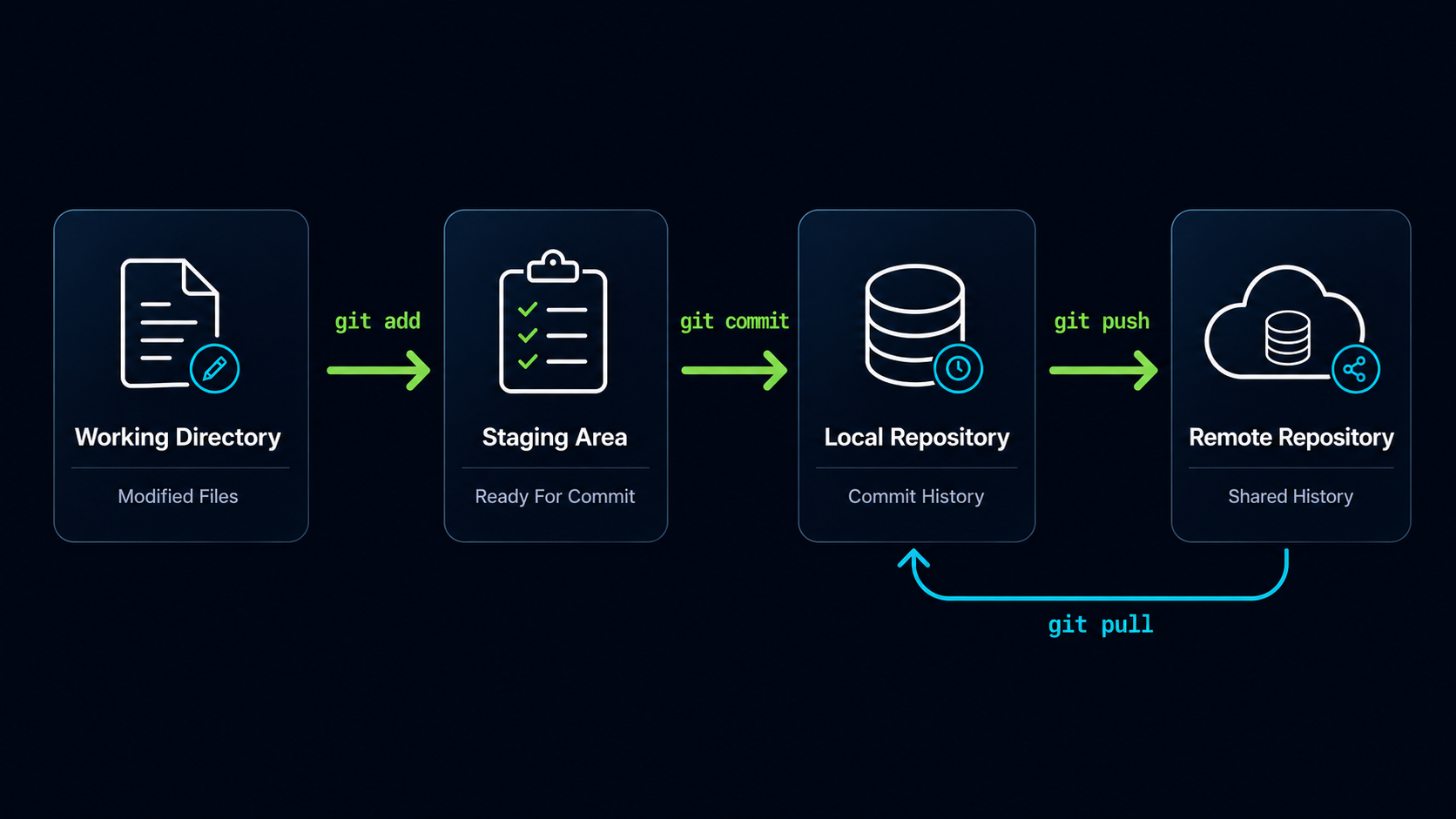
You begin by editing files in your project folder. Then you choose which changes to stage. After that, you save those staged changes as a commit. Once commits exist in your local repository, they can be pushed to GitHub so the project history is backed up and shareable.
The Main Workflow
The most common Git workflow follows this pattern:
| Step | Action | Purpose |
|---|---|---|
| 1 | Modify files | Change your project in the working directory |
| 2 | Review changes (git status) | See what Git currently detects |
| 3 | git add | Stage the changes you want to save |
| 4 | git commit | Save staged changes into local history |
| 5 | git push | Send commits to GitHub |
This is the foundation of everyday Git use. Almost every Git workflow is a variation of this pattern.
Working Directory
The working directory is your actual project folder. This is where you edit files, create new files, delete files, and make normal project changes.
When you change a file, Git notices that the file is different from the last committed version. At this point, the change exists only in your working directory.
Simple Example
If you edit index.html, Git sees that the file has changed. The file is not staged or committed yet. It is simply modified in your working directory.
Git Status
git status is the command that tells you what Git currently sees.
It shows whether files are modified, untracked, staged, or ready to commit. This is one of the most important commands because it helps you understand what state your repository is in before you take action.
git statusA good Git habit is to run git status before staging, before committing, and whenever you feel unsure.
Beginner Habit
When in doubt, run git status. It is the safest way to ask Git, "What is happening right now?"
Staging Area
The staging area is where you prepare the exact changes you want to include in the next commit.
This is what makes Git precise. You do not have to commit everything you changed. You can choose what belongs in the next saved checkpoint.
git add index.htmlTo stage all current changes in the repository, you can use:
git add .After staging, the changes are ready to be committed, but they are not saved in history yet.
Commits
A commit is a saved checkpoint in your project history.
When you commit, Git takes the changes in the staging area and records them permanently in the local repository. This gives your project memory.
git commit -m "Add homepage layout"A good commit message should briefly explain what changed.
| Weak Commit Message | Better Commit Message |
|---|---|
| changes | Add homepage layout |
| update | Fix navigation links |
| stuff | Add contact form markup |
| final | Update README setup instructions |
Commit History
Commit history is the timeline of saved project versions.
Each commit represents one checkpoint. Together, commits show how your project evolved over time.
git log --onelineWhen something breaks, commit history helps you understand what changed and when it changed.
Undoing Changes Safely
Git also gives you ways to recover from mistakes.
If a file has unwanted changes in the working directory, git restore can replace the current modified version with the last committed version.
git restore index.htmlThe important mental model is that Git can help you return to a known safe version, but you should always check the repository state before undoing work.
Branches
Branches allow you to work on a separate line of development without changing the primary project timeline.
A branch is useful when you want to build a feature, fix a bug, or experiment safely.
git branch navigation-redesignCreating a branch makes a new line of development, but it does not automatically move you into that branch.
git switch navigation-redesignAfter switching, your commits are added to the selected branch.
Merging
Merging combines work from one branch into another branch.
For example, if you complete a navigation redesign on a feature branch, you can switch back to the master branch and merge the feature branch into it.
git switch master
git merge navigation-redesign
The mental model is simple: branches let work happen separately, and merging brings completed work back together.
GitHub And Remotes
Git works locally on your computer. GitHub stores a copy of your repository online.
To connect a local repository to a GitHub repository, Git uses a remote connection. The most common remote name is origin.
git remote add origin https://github.com/username/project-name.gitAfter a remote is connected, your local repository can communicate with the GitHub repository.
git remote -vPushing And Pulling
Pushing sends your local commits to GitHub.
git push -u origin masterPulling retrieves commits from GitHub into your local repository.
git pullTogether, push and pull keep your local repository and GitHub repository synchronized.
Typical Daily Workflow
Most developers follow a simple daily workflow when working with Git and GitHub.
| Step | Action | Purpose |
|---|---|---|
| 1 | git pull | Get the latest changes from GitHub |
| 2 | Make changes | Edit project files |
| 3 | git add | Stage the changes you want to save |
| 4 | git commit | Save a local checkpoint |
| 5 | git push | Send your commits to GitHub |
This rhythm helps prevent confusion. You start by getting the latest version, then you work locally, save your changes, and share them back to GitHub.
Complete Command Flow
Here is a realistic beginner workflow from start to finish:
git pull
git status
git add .
git commit -m "Update project files"
git push
This sequence gets remote updates, checks the current state, stages your changes, saves a commit, and pushes the result to GitHub.
How The Pieces Fit Together
| Concept | What It Means | Common Command |
|---|---|---|
| Working Directory | Where you edit files | edit files normally |
| Status | Shows what Git sees | git status |
| Staging Area | Prepares changes for a commit | git add |
| Commit | Saves a checkpoint | git commit |
| History | Shows saved checkpoints | git log |
| Branch | Creates a separate line of work | git branch |
| Switch | Moves to another branch | git switch |
| Merge | Combines branch work | git merge |
| Remote | Connects local Git to GitHub | git remote |
| Push | Sends commits to GitHub | git push |
| Pull | Gets commits from GitHub | git pull |
Once you understand this table, Git becomes much less mysterious. Each command moves information from one place to another or shows you the current state of the system.
Common Beginner Confusions
| Confusion | What It Usually Means | Better Mental Model |
|---|---|---|
| I changed a file but GitHub did not update | The change was not committed and pushed | Local changes must be staged |
| git push says refspec does not match any | The branch may have no commits yet or the branch name is different | Make at least one commit and push the active branch |
| I do not see the Code button on GitHub | Empty repositories often show Quick setup instead | Copy the repository URL from Quick setup |
| I committed but cannot see changes on GitHub | The commit exists locally only | Run git push |
| I pulled but nothing changed | GitHub may not have newer commits | Your local repository may already be up to date |
| I am on the wrong branch | The active branch is not the one you expected | Run git branch and switch if needed |
Mental Model Summary
Think of Git as a system of movement.
The Complete Git Story
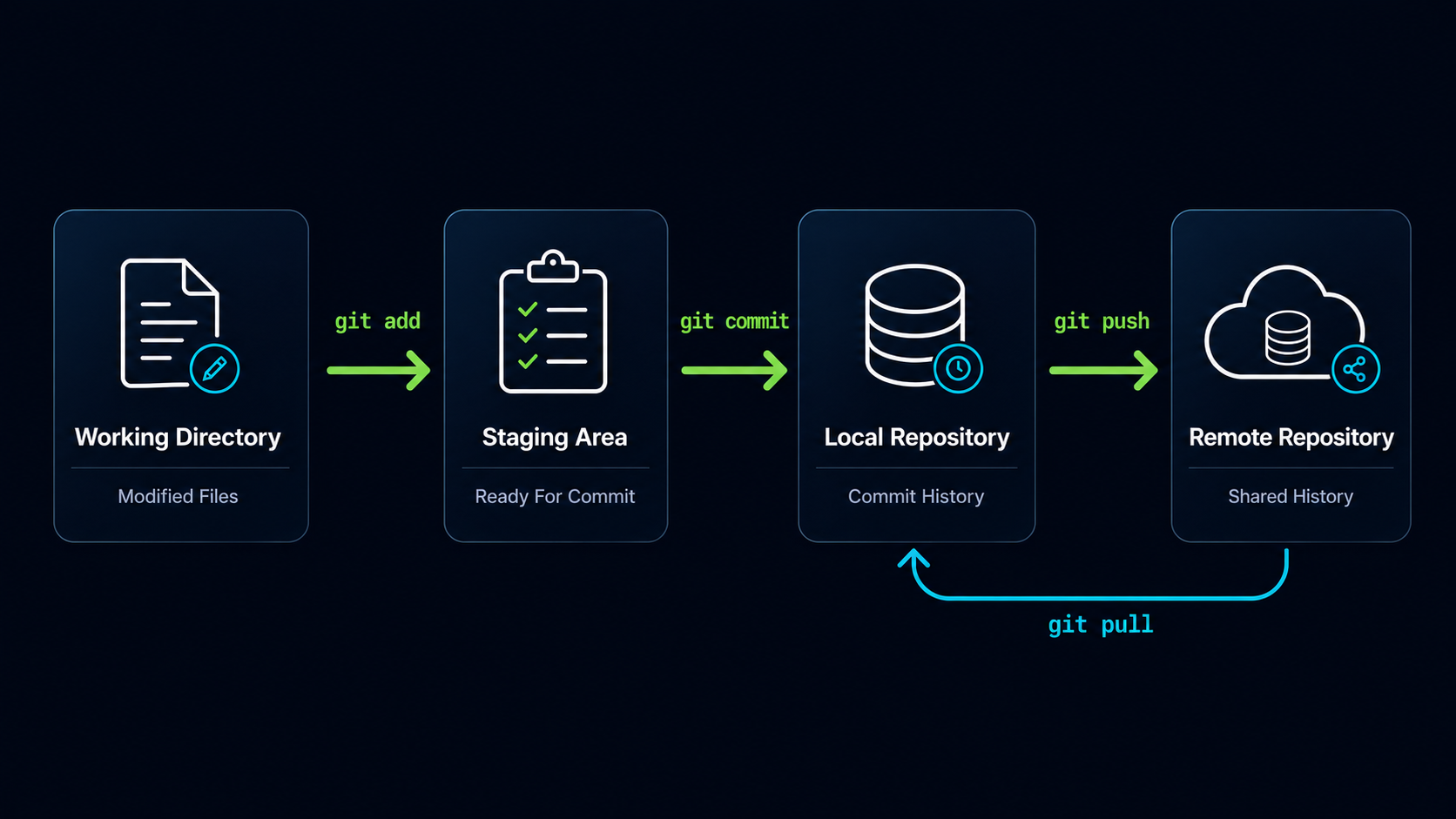
Imagine you open a project and edit a file. The change starts in your working directory. You use git status to see what changed. You use git add to place the change into the staging area. You use git commit to create a permanent checkpoint in your local repository. If the work belongs to a feature branch, the commit is added to that branch. When the work is ready to share, you use git push to send the commit to GitHub. If other developers have added commits to GitHub, you use git pull to bring those commits into your local repository. Every Git command you have learned fits somewhere in this journey.
Files begin in the working directory. Selected changes move into the staging area. Staged changes become commits. Commits form local history. Branches allow different histories to develop safely. GitHub stores a remote copy of the repository. Push sends commits to GitHub. Pull brings commits back from GitHub.
Once you see Git this way, every command becomes easier to place.
Git Fundamentals Checklist
- ✓ I can create a Git repository.
- ✓ I can check the repository state using git status.
- ✓ I can stage specific changes using git add.
- ✓ I can create meaningful commits with git commit.
- ✓ I can review project history using git log.
- ✓ I can restore unwanted changes when needed.
- ✓ I can create and switch branches.
- ✓ I can merge completed work into another branch.
- ✓ I can connect a local repository to GitHub.
- ✓ I can push commits to GitHub.
- ✓ I can pull updates from GitHub.
- ✓ I understand how changes move from Working Directory → Staging Area → Commit History → GitHub.
Final Learning Path Reflection
Conclusion
You have now seen the complete beginner Git workflow as one connected system. Git is not just a list of commands. It is a way to move changes carefully from active work into saved history and, when needed, into a shared GitHub repository.
The more you practice this workflow, the more natural it becomes: check the status, stage the right changes, commit meaningful checkpoints, use branches when work should stay separate, and synchronize with GitHub using push and pull.