
Understanding Git Status
Learn how to read git status so you always know what Git sees in your project.
Introduction
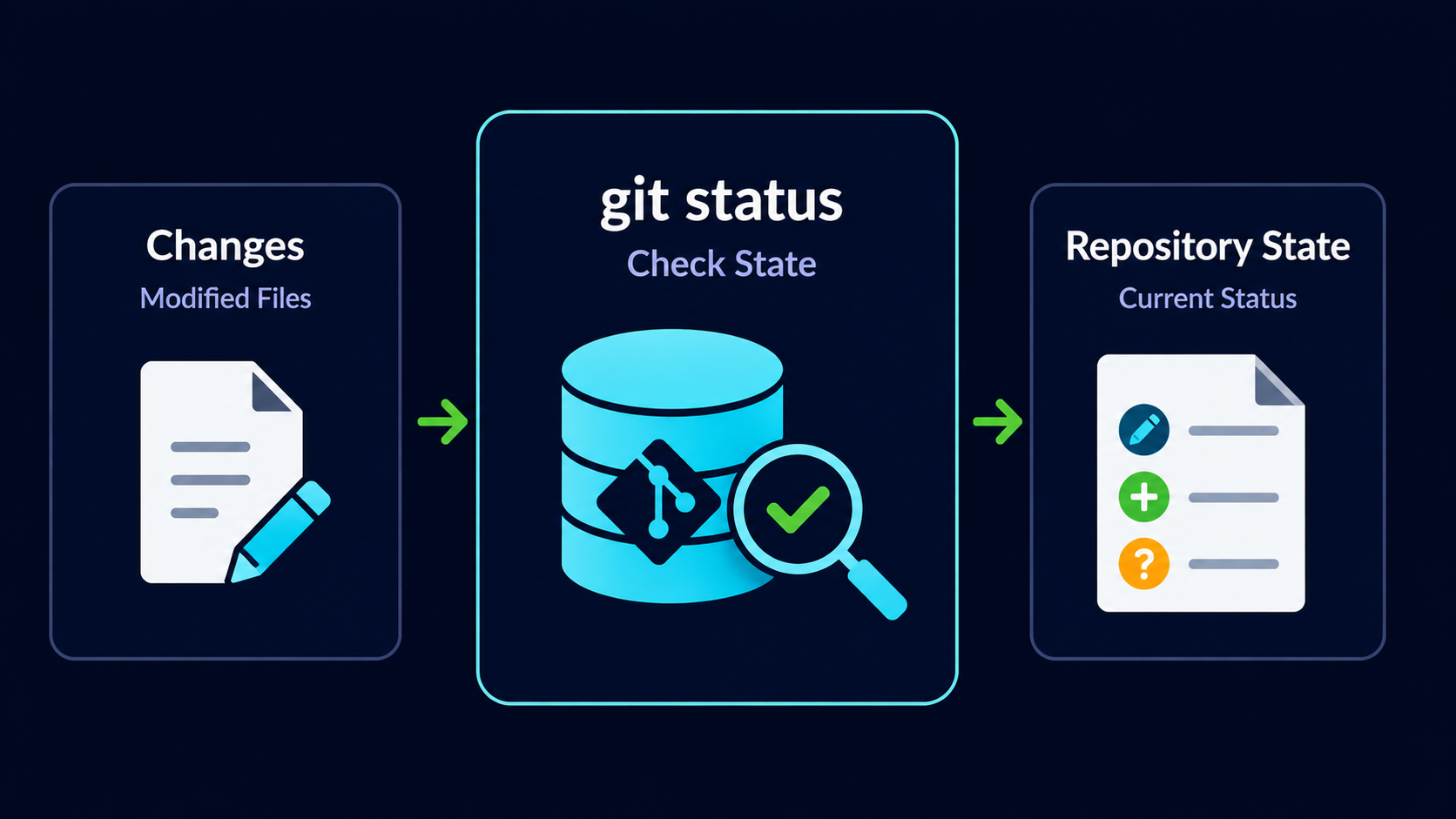
git status is one of the most useful Git commands because it tells you what Git currently sees in your project. It shows whether files are changed, staged, untracked, or already committed.
In this guide, you will learn how to read git status output and use it as your main navigation tool while working with Git.
Why Git Status Matters
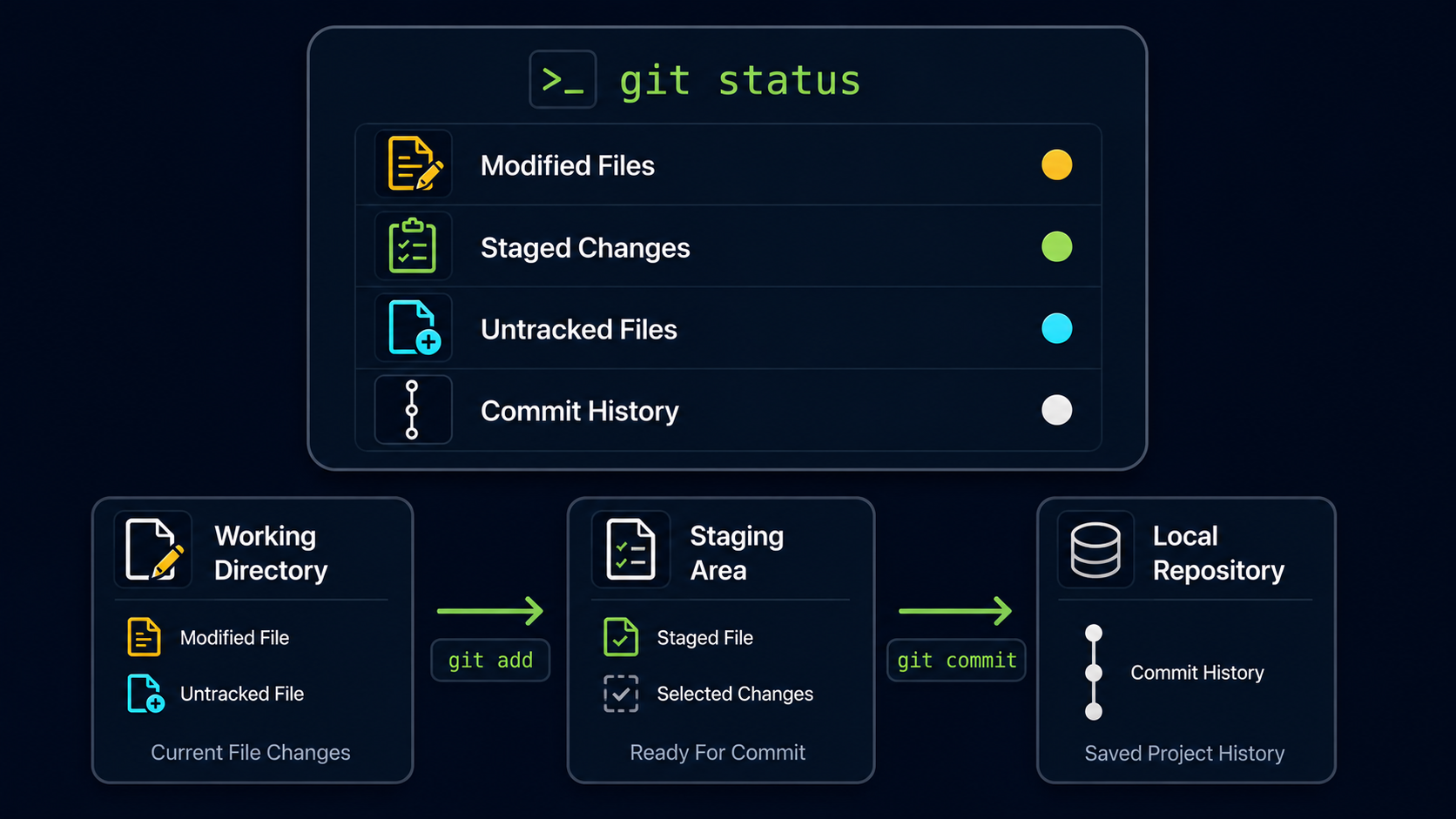
Git has several places where changes can exist: the Working Directory, the Staging Area, and the Local Repository. Without git status, it is easy to lose track of where your changes are.
Running git status gives you a clear report before you decide what to do next.
Real World Example
Imagine editing three files in a website project. One file is ready to commit, one file is still unfinished, and one new file has not been added to Git yet. git status helps you see those differences before you accidentally commit the wrong work.
Git Status Mental Model
Think of git status as Git's dashboard. It does not change your files. It simply reports the current state of your repository.
| Status Area | What It Means |
|---|---|
| Untracked files | Git sees new files that are not being tracked yet |
| Changes not staged | Git sees modified files in the Working Directory |
| Changes to be committed | Git sees staged changes ready for commit |
| Working tree clean | Git sees no uncommitted changes |
Once you understand these status areas, Git becomes much easier to use because you can always ask Git what state your project is in.
Check The Current Repository Status
Start by running git status inside your repository.
Open Git Bash In Your Repository
Open Git Bash and move into your project repository folder.
Use any Git repository on your computer.
cd ~/my-first-project[user@computer MINGW64 ~]
$ cd ~/my-first-project
[user@computer MINGW64 ~/my-first-project (main)]
$
Run Git Status
Use git status to ask Git what it currently sees.
This command is safe to run at any time because it only displays information.
git status[user@computer MINGW64 ~/my-first-project (main)]
$ git status
On branch main
nothing to commit, working tree clean
This output means your repository has no uncommitted changes. Git does not see any modified, staged, or untracked files.
Understand A Clean Working Tree
A clean working tree means your current files match the latest commit in your local repository.
This does not mean your project is finished. It only means Git does not see any new changes waiting to be staged or committed.
| Output | Meaning |
|---|---|
| On branch main | You are currently working on the main branch |
| nothing to commit | There are no staged changes waiting for a commit |
| working tree clean | There are no unstaged or untracked changes |
Understand Modified Files
If you edit a file that Git already tracks, git status will show that the file has been modified.
Modify README.md
Add a new line of text to README.md.
This creates a change in the Working Directory.
echo "Learning git status." >> README.md[user@computer MINGW64 ~/my-first-project (main)]
$ echo "Learning git status." >> README.md
Check Status After The Change
Run git status again.
Git should now report that README.md was modified.
git status[user@computer MINGW64 ~/my-first-project (main)]
$ git status
On branch main
Changes not staged for commit:
modified: README.md
no changes added to commit
This means README.md has changed in the Working Directory, but the change has not been staged yet.
Understand Staged Changes
After you use git add, the changed file moves into the Staging Area. git status will then show it under changes to be committed.
Stage README.md
Add the modified file to the Staging Area.
This prepares the change for the next commit.
git add README.md[user@computer MINGW64 ~/my-first-project (main)]
$ git add README.md
Check Status After Staging
Run git status again.
The file should now appear under changes to be committed.
git status[user@computer MINGW64 ~/my-first-project (main)]
$ git status
On branch main
Changes to be committed:
modified: README.md
This means README.md is staged and ready to be saved into history with git commit.
Understand Untracked Files
An untracked file is a file that exists in your project folder but has not been added to Git yet.
Create A New File
Create a new file named notes.txt.
This gives Git a new file to detect.
touch notes.txt[user@computer MINGW64 ~/my-first-project (main)]
$ touch notes.txt
Check Status With An Untracked File
Run git status again.
Git should show notes.txt as an untracked file.
git status[user@computer MINGW64 ~/my-first-project (main)]
$ git status
On branch main
Changes to be committed:
modified: README.md
Untracked files:
notes.txt
This output shows two different states at the same time. README.md is staged, while notes.txt is untracked.
Read Git Status As A Decision Tool
git status is useful because it tells you what action to take next.
| Git Status Shows | What You Usually Do Next |
|---|---|
| Untracked files | Use git add if the file should be tracked |
| Changes not staged | Use git add if the change is ready |
| Changes to be committed | Use git commit when staged changes are correct |
| Working tree clean | Continue working or view history |
Instead of guessing, use git status to decide whether to add, commit, or keep editing.
Run Git Status Often
Many developers run git status constantly. It is one of the safest and most useful habits you can build when learning Git.
Common Beginner Mistakes
| Mistake | Why It Causes Confusion | Better Habit |
|---|---|---|
| Ignoring git status | You do not know what Git sees | Check status before add and commit |
| Thinking modified means staged | Modified files may still be unstaged | Look for changes to be committed |
| Forgetting untracked files | New files may be left out of commits | Add new files intentionally |
| Committing without checking | Wrong files may be saved | Run git status first |
Why This Step Matters
git status is the command that keeps you oriented. It turns Git from a confusing black box into a readable system.
When you understand status output, you can see exactly where your changes are and choose the correct next command with confidence.
Conclusion
In this guide, you learned how git status reports clean working trees, modified files, staged changes, and untracked files. You also learned how to use status output as a decision tool before adding or committing changes.