
Pushing and Pulling Changes
Learn how to synchronize your local repository with GitHub using git push and git pull.
Introduction
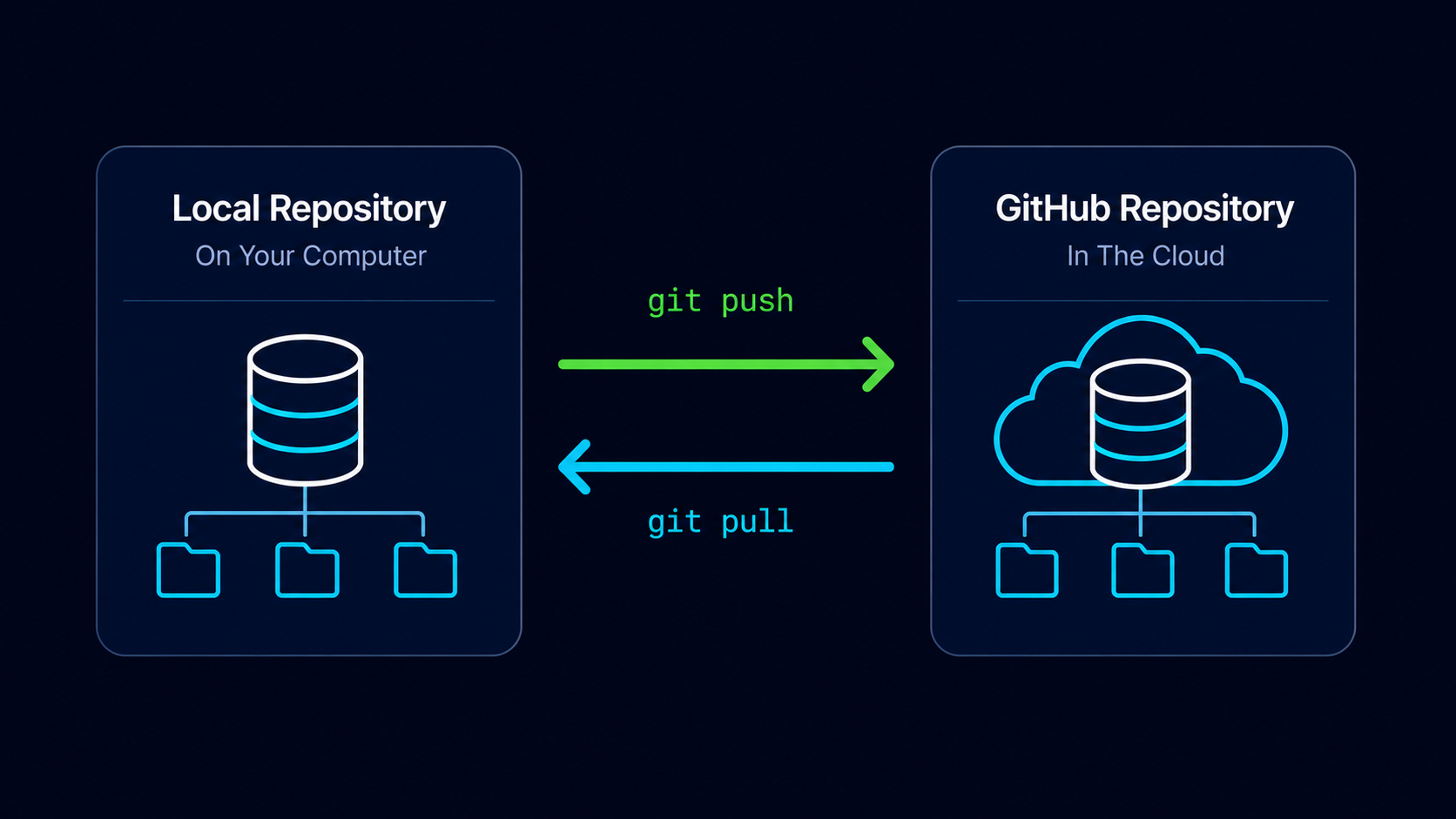
Your local repository and GitHub repository are now connected, but they are still separate copies of the project. To keep them synchronized, Git provides two important commands: git push and git pull.
git push uploads commits from your local repository to GitHub. git pull downloads commits from GitHub into your local repository.
In this guide, you'll learn how these commands work and perform your first synchronization with GitHub.
Why Synchronization Matters
A local repository only exists on your computer. A GitHub repository exists on GitHub's servers. Unless changes are synchronized, each repository may contain different versions of the project.
Synchronization keeps both repositories aligned so they share the same history.
Real World Example
Imagine writing a document on your laptop while a backup copy exists in cloud storage. If you never upload your changes, the cloud copy becomes outdated. Synchronization ensures both copies remain current.
Push And Pull Mental Model
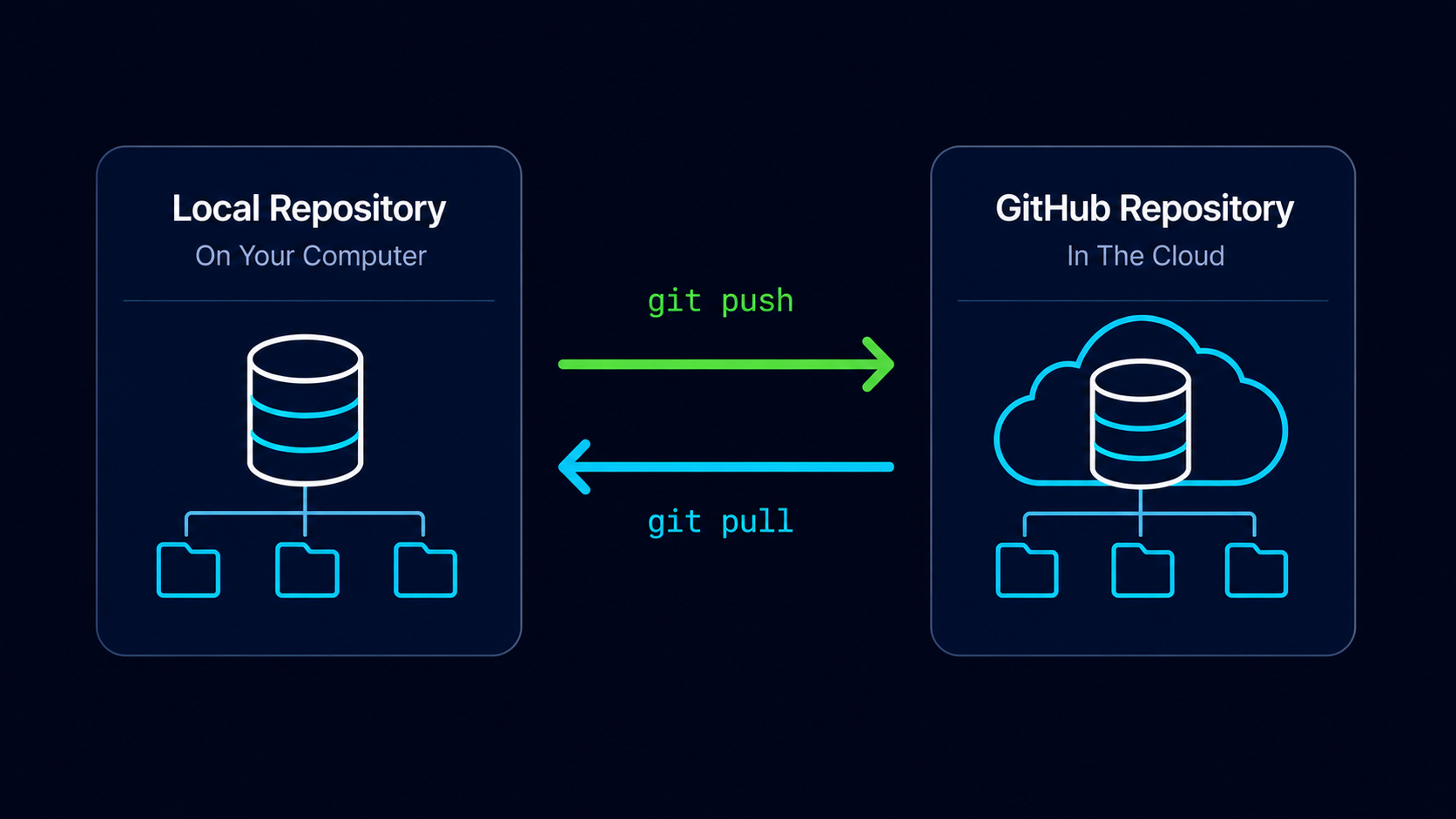
Think of your local repository and GitHub repository as two locations connected by a two-way road.
| Command | Direction | Purpose |
|---|---|---|
| git push | Local → GitHub | Upload commits |
| git pull | GitHub → Local | Download commits |
Simple Mental Model
Push sends your work to GitHub. Pull brings GitHub's work back to your computer.
Check Repository Status
Before pushing, it's useful to verify that your repository is in a clean state.
Open Git Bash In Your Repository
Navigate to your local Git repository.
Use the repository connected to GitHub in the previous guide.
cd ~/my-first-projectVerify Repository Status
Check that there are no uncommitted changes.
Your repository should ideally be clean before pushing.
git status[user@computer MINGW64 ~/my-first-project (main)]
$ git status
On branch main
nothing to commit, working tree clean
Push Your Commits To GitHub
The first push uploads your local commit history to GitHub.
Push The Main Branch
Upload your local commits to GitHub.
The first push usually establishes tracking between your local and remote branches.
git push -u origin main[user@computer MINGW64 ~/my-first-project (main)]
$ git push -u origin main
Enumerating objects: 6, done.
Counting objects: 100% (6/6), done.
Writing objects: 100% (6/6), done.
Total 6 (delta 0), reused 0 (delta 0)
To https://github.com/username/my-first-project.git
* [new branch] main -> main
Branch 'main' set up to track remote branch 'main' from 'origin'.
Git uploaded your commits to GitHub and established a tracking relationship between the local and remote main branches.
Understanding The Push Command
| Component | Meaning |
|---|---|
| git push | Upload changes |
| origin | Remote repository name |
| main | Branch being uploaded |
| -u | Create tracking relationship |
After the first push, future pushes become simpler because Git remembers the relationship between the local and remote branches.
Use Future Pushes
Upload new commits after the tracking relationship has been established.
Git already knows which remote branch to update.
git pushMost developers use this shorter version after the initial setup.
Verify The Push On GitHub
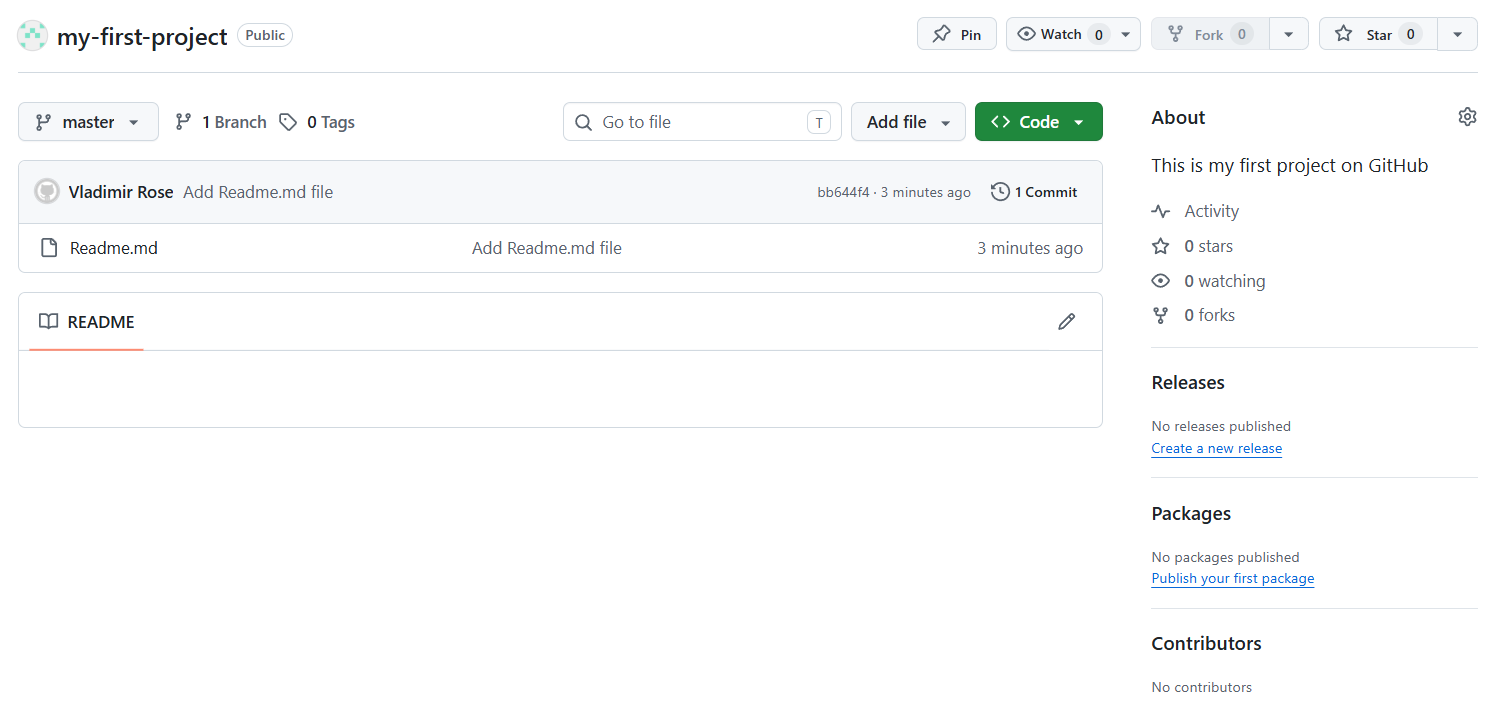
After pushing, refresh your GitHub repository page.
Refresh The GitHub Repository
Reload the repository page in your browser.
The repository should now display your project files and commit history.
The repository is no longer empty because GitHub now contains your uploaded commits.
Pull Changes From GitHub
While git push uploads changes, git pull downloads changes from GitHub into your local repository.
Pulling becomes especially important when collaborating with other developers or working from multiple computers.
Download Changes From GitHub
Use git pull to synchronize your local repository with GitHub.
Git checks for new commits and downloads them if necessary.
git pull[user@computer MINGW64 ~/my-first-project (main)]
$ git pull
Already up to date.
Git reports that there are currently no new commits to download.
Understanding The Pull Command
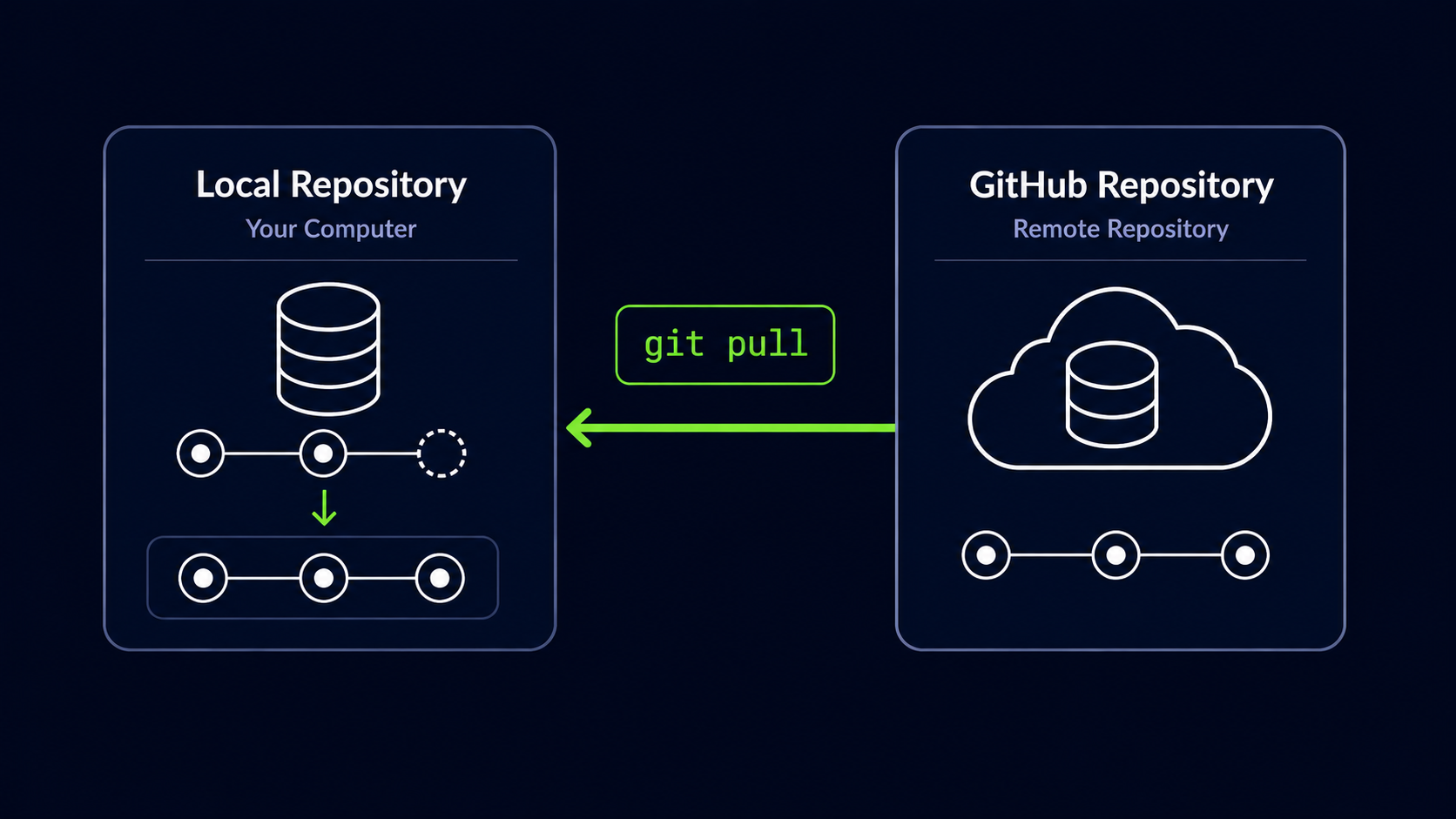
When you run git pull, Git contacts the remote repository, checks for new commits, downloads them, and updates your local repository.
| Action | Result |
|---|---|
| Check GitHub | Look for new commits |
| Download commits | Transfer changes locally |
| Update repository | Synchronize history |
Typical Daily Workflow
Most developers follow a simple synchronization workflow.
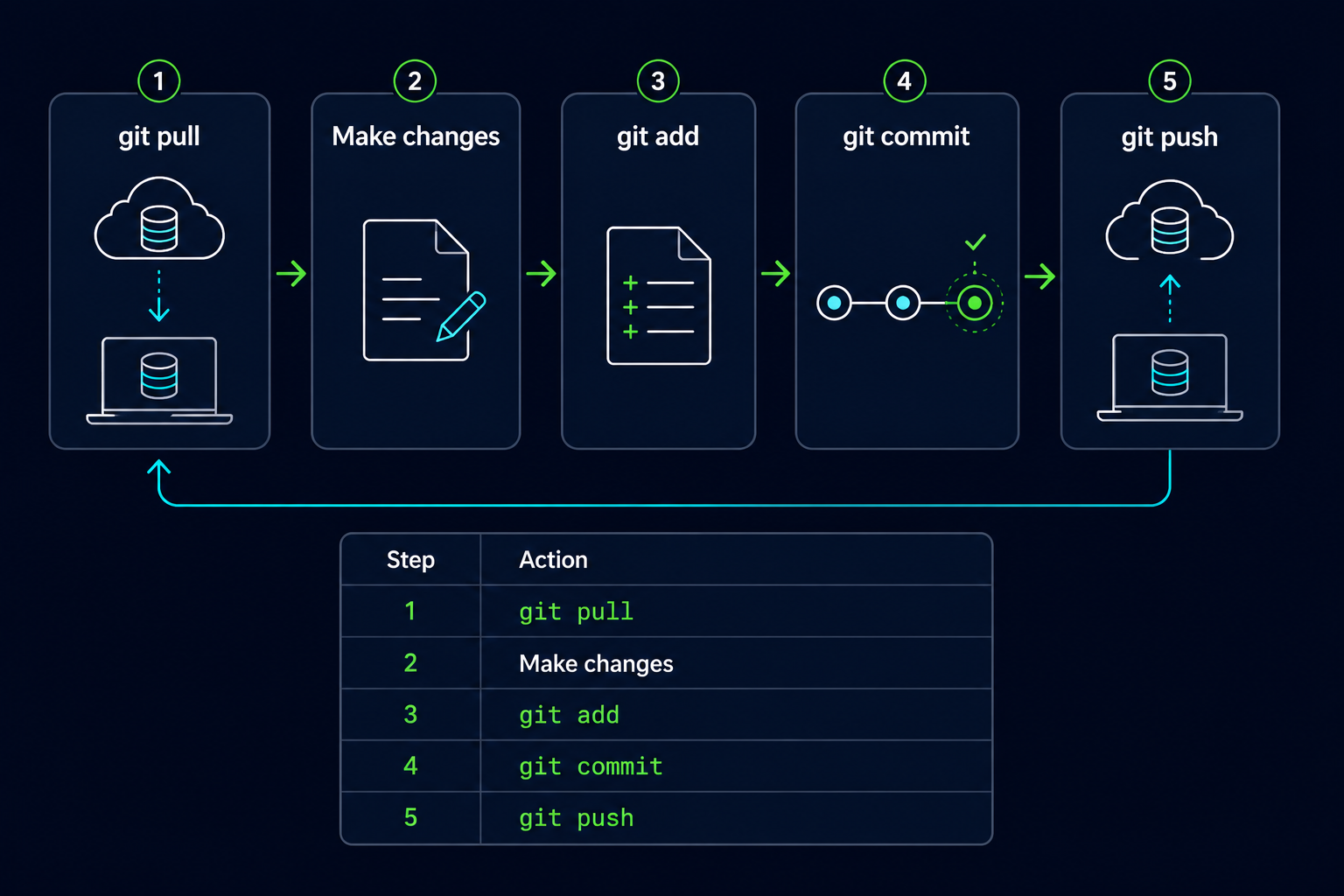
| Step | Action |
|---|---|
| 1 | git pull |
| 2 | Make changes |
| 3 | git add |
| 4 | git commit |
| 5 | git push |
This cycle keeps local and remote repositories synchronized throughout development.
Common Beginner Mistakes
| Mistake | Why It Happens | Better Habit |
|---|---|---|
| Forgetting to push | Assuming commits automatically reach GitHub | Push after committing |
| Forgetting to pull | Working with outdated information | Pull before starting work |
| Confusing push and pull | Similar terminology | Remember push uploads and pull downloads |
| Skipping repository status checks | Missing local changes | Run git status regularly |
Why This Step Matters
Pushing and pulling are the foundation of working with remote repositories. These commands allow developers to back up their work, collaborate with others, and synchronize projects across devices.
Nearly every GitHub workflow relies on regular pushing and pulling.
Conclusion
In this guide, you learned how to push commits to GitHub, pull updates from GitHub, establish branch tracking, and keep local and remote repositories synchronized.