
Undoing Changes Safely
Learn how to safely discard unwanted changes and restore files to their last committed version.
Introduction
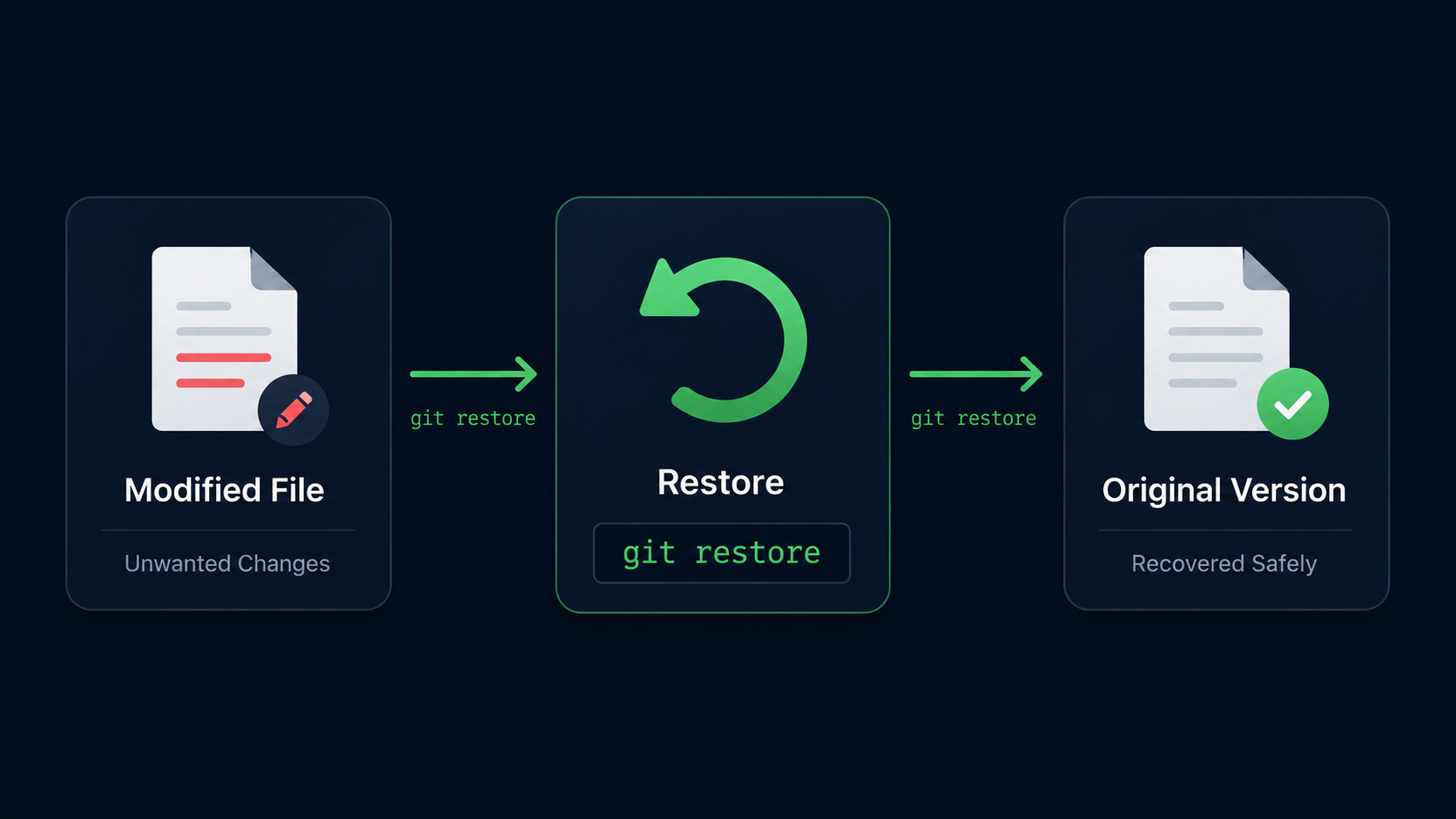
Mistakes happen during software development. You may edit the wrong file, delete important content, or simply decide that a change is no longer needed.
Git provides safe ways to undo changes before they become permanent history. In this guide, you'll learn how to restore files back to their last committed state using git restore.
Understanding how to undo changes safely is an important skill because it allows you to experiment confidently without worrying about permanently breaking your project.
Why Safe Undo Matters
One of Git's biggest advantages is that it gives you a safety net. You can make changes freely because Git helps you return to a known good state when something goes wrong.
Real World Example
Imagine you accidentally delete half of your homepage while editing a file. Instead of manually rebuilding everything, Git can restore the file exactly as it existed in the most recent commit.
Undoing Changes Mental Model
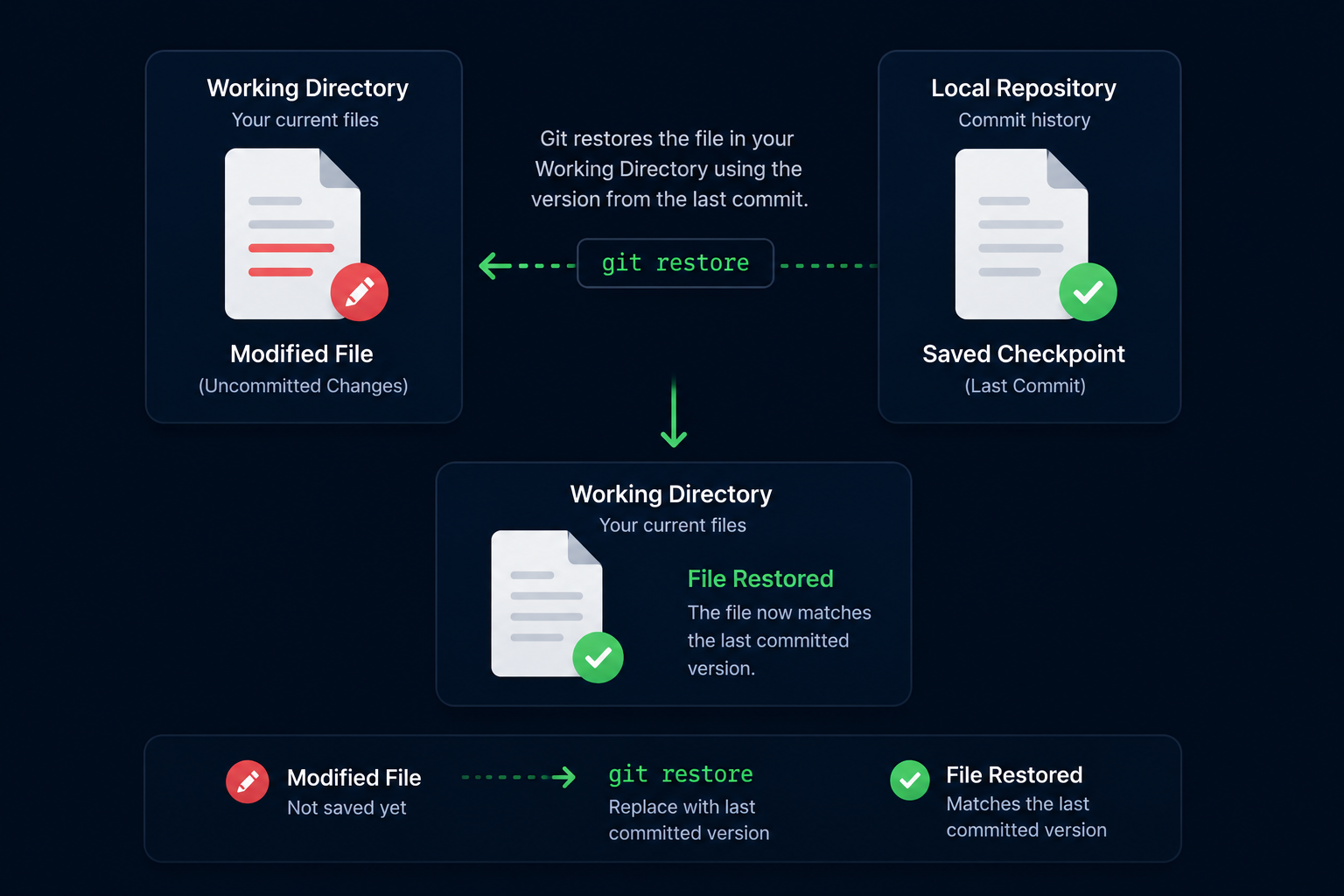
Think of Git as maintaining two versions of your files. One version exists in your Working Directory where you actively edit files. The other version exists inside your Local Repository as a saved checkpoint.
When you restore a file, Git replaces the current modified version with the last saved version from commit history.
Understanding Git Restore
The git restore command discards uncommitted changes and restores files back to the version stored in the latest commit.
Important
git restore permanently removes uncommitted changes. Make sure you no longer need those changes before running the command.
| State | Result |
|---|---|
| Modified file | Can be restored |
| Committed change | Remains in history |
| Uncommitted edits | Removed by restore |
| Commit history | Unchanged |
Check Your Repository Status
Before undoing changes, it's a good idea to see what Git currently detects in your repository.
Open Git Bash In Your Repository
Open Git Bash and navigate to your repository folder.
Use the same repository you've been working with throughout this learning path.
cd ~/my-first-projectCheck Repository Status
Run git status to see which files have been modified.
Git will show any files that contain changes.
git status[user@computer MINGW64 ~/my-first-project (main)]
$ git status
On branch main
Changes not staged for commit:
modified: README.md
no changes added to commit
Git shows that README.md has been modified but has not yet been committed.
Restore A Single File
If you want to discard changes from a specific file, use git restore followed by the file name.
Restore The Modified File
Use git restore to return the file to its last committed version.
Replace README.md with the file you want to restore.
git restore README.md[user@computer MINGW64 ~/my-first-project (main)]
$ git restore README.md
[user@computer MINGW64 ~/my-first-project (main)]
$
Git usually completes the restore silently. No output generally means the command worked successfully.
Verify The Restore
Run git status again to confirm the file was restored.
The modified file should no longer appear in the status output.
git status[user@computer MINGW64 ~/my-first-project (main)]
$ git status
On branch main
nothing to commit, working tree clean
The Working Directory now matches the most recent commit.
Restore Multiple Files
You can restore more than one file at the same time by listing multiple file names after git restore.
Restore Multiple Files
Specify each file you want Git to restore.
Git will restore all listed files to their last committed state.
git restore index.html styles.css script.jsThis is useful when you've made several unwanted edits across multiple files.
Restore All Modified Files
Sometimes you want to abandon every uncommitted change and return the entire project to its last committed state.
Restore All Modified Files
Use a period to tell Git to restore everything in the current repository.
This command affects all modified files.
git restore .What Git Restore Does Not Change
Git restore only affects your Working Directory files. It does not change commit history and it does not remove existing commits.
| Action | Affected By Git Restore |
|---|---|
| Modified file contents | Yes |
| Uncommitted changes | Yes |
| Latest commit | No |
| Commit history | No |
| Branch history | No |
This makes git restore one of the safest undo commands available to beginners.
Common Beginner Mistakes
| Mistake | Why It Happens | Better Habit |
|---|---|---|
| Restoring before reviewing changes | Changes are lost unexpectedly | Run git status first |
| Using restore on the wrong file | Wrong work is discarded | Double-check file names |
| Assuming restore removes commits | Misunderstanding Git history | Remember restore affects files not commits |
| Using restore carelessly | Multiple edits disappear | Review changes before restoring |
Why This Step Matters
Developers are willing to experiment because they know they can safely recover from mistakes. Git restore gives you that confidence by making it easy to discard unwanted edits.
The ability to undo changes safely is one of the reasons Git is trusted by software developers around the world.
Conclusion
In this guide, you learned how to use git restore to undo unwanted changes, restore individual files, restore multiple files, and return your Working Directory to a clean state.